Life Cycle of a Traded Shift
The following summarizes the sequence of events when employees trade schedules. Click on the link to navigate to more detailed descriptions.
Step 1: The requesting employee enters a trade
Step 2: Traded schedules icons are displayed in portal screens
Step 3: The accepting employee handles the request (if required)
Step 4: The supervisor handles the request
|
The following related topics are available: |
Step 1: The employee submits a trade request
An employee submits a trade request through the self scheduling screen. This employee is the "requesting employee".
To trade a schedule with another employee, complete the following steps:
-
From the tool bar, select the Employees icon.
-
Click on the My Time Card button in the left pane.
Note
Authorized users can submit requests for other employees. Use the Employee Search page to find and open the employee record.
-
Click on the Open Self Schedule button in the Employee Actions section in the left pane.
-
Highlight the activity code on the My Schedule portion of the self scheduling grid.
-
Click on the Trade button.
Note
If the Trade button does not appear on the schedule, either trading has not been configured for the organization unit, or this schedule is not in the time frame allowed for trading schedules.
-
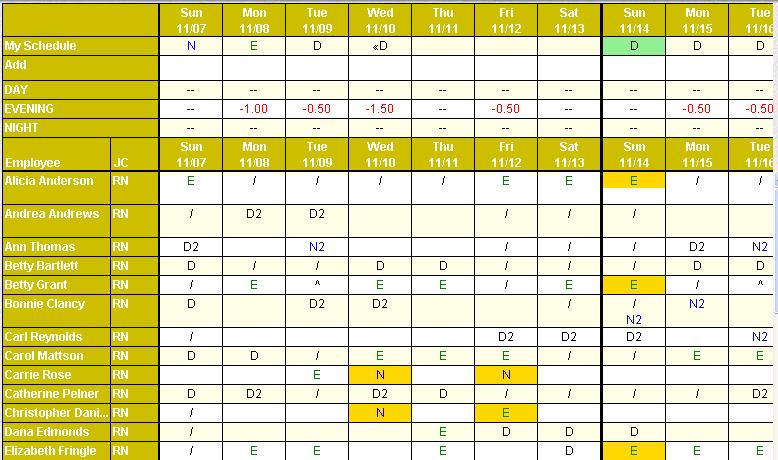
Trading options are highlighted on the Employee Grid on the lower section.
The following validations are automatically done to determine which shifts get highlighted. At this point in the process, the Selection Style you chose is not validating; that validation occurs after a trade is attempted.
-
Both employees must have profile permissions to the shifts that are to be traded.
Example
Emp1 is trading SchedA. Emp2's shift is SchedB. Emp1 must have profile permissions to SchedB and Emp2 must have profile permissions to SchedA.
-
The shift lengths must be the same (not including lunch lengths).
-
There can be no overlap of either of the traded shifts with other existing (non-traded) shifts.
-
There can be no overlap of either of the traded shifts with other situations causing either employee to not be available.
Example
Either employee has an overlapping education class, approved unavailability, approved recurring unavailability, or other approved calendar requests. Pending requests are not considered in this validation.
Note
If employees are allowed to select shifts that are not highlighted, the new shift may be of a different length than the original shift, and the employee may not be eligible to work it without exceeding approved or overtime hours.
-
The setting to determine if employees can trade only with shifts that are highlighted is set up on Organization Unit Indicator Self Scheduling Standard 2.
-
The setting to determine if employees can trade with shifts that are not in the same week is set up on Organization Unit Indicator Self Scheduling Standard 1.
-
-
In the Employee Grid, click on the schedule to be traded.
The trade dialog appears.
-
Enter any Comments in the free-form text field.
-
To continue with the save, click on the Submit Trade button.
-
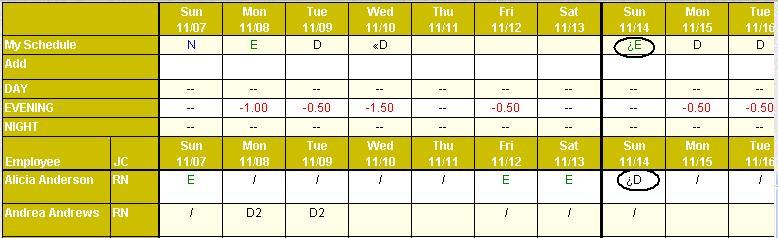
The system validates both trading employee shifts submitted to determine if any scheduling assignment rules are being violated by the trade, based on the Shift Trade Selection Style assigned to the Self Schedule Tab on the Staffing Configuration screen of the organization unit. If any rules are being violated, a message is displayed. The user may have the option to override the warnings and continue with the trade.
The traded shifts for both employees are displayed with an icon to the left of the activity code, indicating they are pending approval.
-
If Event Subscriptions are set up, the supervisors with data access to either employee are notified when the request is submitted.
Step 2: Traded schedule icons are displayed in the portal screens
Once the trade has been submitted, icons are displayed on the Schedule screen and on the self-scheduling screens for the traded shifts. There are also icons displayed in the Trade Requests screen, so the employees can monitor the status of the trade.
-
The accepting employee must accept the request.
-
The system assumes denial. This means the traded shifts remain assigned to the original employees in the Schedule screen. They are not assigned to the trading employees until the request is approved by the accepting employee.
-
On the Schedule screen, the trade request icon is displayed and the request is visible on the Requests tab at the bottom of the screen.
-
A rules validation is done using the Shift Trade Selection Style chosen in the Staffing Configuration screen.
-
The request appears on the My Trade Requests screen of both the requesting and accepting employee with a status of Waiting Review
 .
.
Note
Supervisors cannot approve the trade request until it has been approved by the accepting employee; however, they can deny the request at any time.
Step 3: The accepting employee handles the request (if required)
The accepting employee can accept or cancel this trade from the My Trade Request screen by clicking on the folder to the left of the record to open it, and then click on the Accept or Cancel button in the left pane.
Note
A supervisor may accept or cancel this schedule for the employee by opening , searching for the record, and clicking on the Accept or Cancel button in the left pane.
Accepting employee accepts trade
If the trade is accepted by the accepting employee:
-
The accepting employee must enter a comment upon acceptance of the trade if Org Unit Self Scheduling Standard Indicator 7 is set to Y. If this indicator is set to N, a comment is optional.
-
A rules validation is done using the Shift Trade Selection Style chosen in the Staffing Configuration screen.
-
The traded schedules are displayed on the schedule grid with the trade request icon
 .
. -
The request status is updated to Requested
 in the My Trade Request card on the Home page for both requesting and accepting employees.
 -
Both employees are notified when the status of the request is updated via a notification, if they have set up Event Subscriptions.
Accepting employee cancels trade
If the trade is canceled by the accepting employee:
-
The shifts remain with the originally scheduled employees on the schedule screen.
-
The request status is updated to Canceled
 in the My Trade Request card on the Home page for both requesting and accepting employees.
 -
Both employees are notified when the status of the request is updated via a notification, if they have set up Event Subscriptions.
Note
Depending on the setting of Organization Unit Indicator Self Scheduling Standard 9, a trade request can/cannot be canceled outside the range of the trading window.
Step 4: The supervisor handles the request
The supervisor can approve or deny the trade request through or through Schedule screen in . In the Schedule screen, this is located on the Requests tab on the lower area of the screen.
Supervisors cannot approve the trade request until it has been approved by the accepting employee, however, they can deny the request at any time.
Supervisor approves trade request
If the trade request is approved by the supervisor:
-
A rules validation is done using the Shift Trade Selection Style chosen in the Staffing Configuration screen.
-
The shifts are assigned to the trading employees if the Org Unit Self Scheduling Standard Indicator 6 is set to B. (For all other settings, the shift was assigned to the trading employee when it was submitted.)
-
The request status is updated to Approved
 in the My Trade Request card on the Home page for both requesting and accepting employees.
 -
Both employees are notified when the status of the request is updated via a notification, if they have set up Event Subscriptions.
Supervisor denies trade request
If the trade request is denied by the supervisor:
-
The shifts revert back to the originally scheduled employees.
-
The request status is updated to Denied
 in the My Trade Request card on the Home page for both requesting and accepting employees.
 -
Both employees are notified when the status of the request is updated via a notification, if they have set up Event Subscriptions.