Add a Schedule Incentive Request
-
Navigate to .
-
Enter information in any of the fields to help you find the incentive schedules you want to view.
-
Click Search.
Schedule Incentive offers that match your criteria appear.
Note
Multiple Schedule Incentive offers may appear that are identical. When a manager originally set up the schedule offer, there may have been multiple employees needed during that shift. For example, if there are usually five RNs scheduled during a certain timeframe and three RNs have been scheduled, that leaves a need of two more RNs. So the manager may decide to create two Schedule Incentive offers. This causes you to see multiple offers that appear identical.
Tip
You can only submit one request for a shift, even if multiple offers appear. If you attempt a second request, a warning message appears and you cannot finish the second request.
-
Click the folder for the incentive schedule you want to request.
A screen appears with information about the schedule you are requesting.
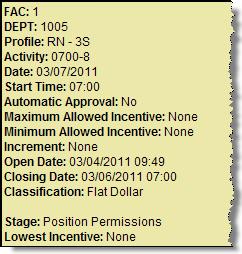
Flat Dollar Method
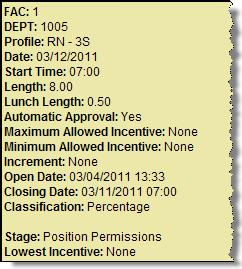
Percentage Method
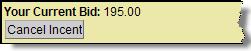
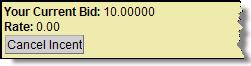
If you have already requested this incentive schedule, your request also appears.
The following list gives you explanations for some of the details of the offer.
-
Flat Dollar method - Displays a specific activity code. Percentage method displays the start time, length, and lunch length for the shift.
-
Automatic Approval (Yes or No) - Determines how the lowest Schedule Incentive request is handled when the offer closes.
-
Yes - The lowest Schedule Incentive request is automatically approved.
-
No - The lowest Schedule Incentive request in not automatically approved and still requires a manager approval.
-
-
These values provide a range that your Schedule Incentive request must fall between.
-
Increment (only used with the Dollar method) - The increment that Schedule Incentive requests must meet.
Note
If there is no value entered in the Maximum Bid field, then the Increment value will be set to zero.
Example
You view a Flat Dollar Schedule Incentive offer. The offer has a Maximum Allowed Incentive of $200, a Minimum Allowed Incentive of $100, and an Increment of $0.50. Your request must be between $100 and $200 dollars and must end with an even dollar amount or 50 cents, such as $125.00 or $132.50.
-
Open Date and Closing Date - These are the dates and times that the offer began and when it will close.
-
Stage - This indicates who is allowed to submit requests for this incentive schedule, such as a department or position permissions (a specific position).
-
Lowest Incentive - If enabled for your organization, the lowest Schedule Incentive request appears. This helps with your decision on your request.
-
-
In the New Bid field, enter your Schedule Incentive request amount.
If the offer is using the Percentage method, select the appropriate percentage from the menu.
Example
Selecting 20 means that you are requesting to work this shift for your base rate plus 20%.
If the offer is using the Flat Dollar method, enter your request in dollars.
Example
Entering 185 means you are requesting to work this shift for $185.00.
-
Click Save.
The incentive schedule that you request is given to a manager for approval.